
Blogs & Articles
Read useful articles, tips, and updates about computers, IT solutions, and technology trends.
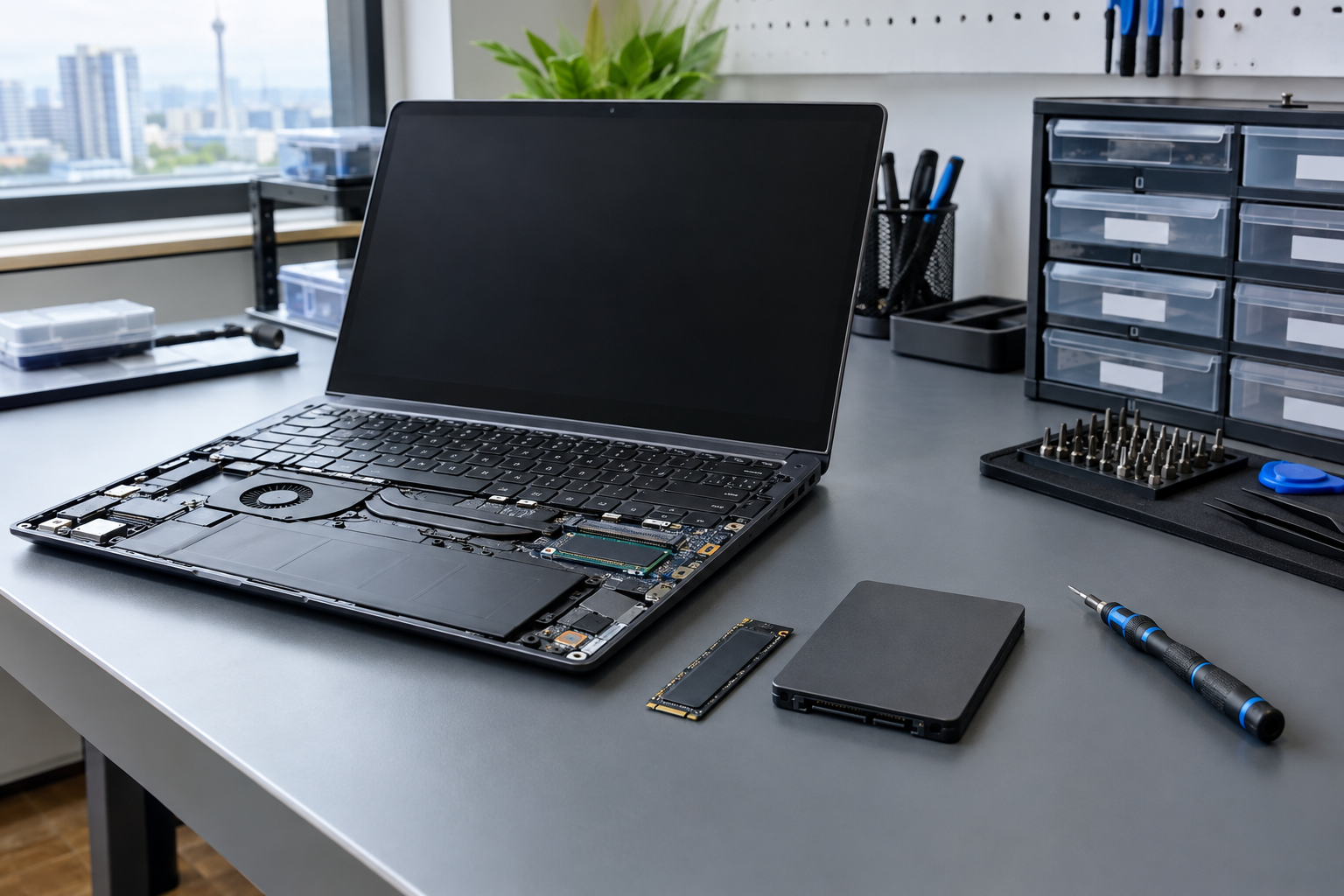
Laptop SSD Upgrade in Malaysia: Compatibility, Cost Factors and a Practical Upgrade Checklist
A laptop SSD upgrade in Malaysia can improve booting, application loading and file access, but only when the replacement drive matches the laptop. Before buying, identify the laptop model, confirm its storage slot and interface, then decide whether you need a replacement drive or an additional one. A new high-performance SSD and RAM upgrade may both appear in an upgrade plan, but they solve different limitations and should not be purchased until the actual bottleneck is clear.
This guide helps you check compatibility, compare M.2 NVMe with 2.5-inch SATA, estimate the complete cost and prepare for cloning or a clean operating-system installation. It also explains when to stop and ask for model-specific assistance.
Upgrading from an older hard disk drive to an internal SSD is often a practical way to make a sluggish laptop feel more responsive. However, the result depends on the existing storage, the laptop’s supported interface and the tasks you perform. An SSD will not automatically solve limited memory, an ageing battery, overheating or a processor bottleneck.
For an older laptop that feels slow because it still uses a mechanical hard disk drive, replacing the HDD with an SSD is often the most effective way to speed it up in everyday workloads. The improvement is most noticeable during startup, application loading and file access. It is not a complete solution for low RAM, overheating, battery wear or a processor limitation, so check the actual bottleneck first. If the laptop has a compatible SSD slot or 2.5-inch bay, this upgrade can be a practical first step before considering more expensive changes.
Use this decision sequence:
| Check | What to find out | Action before purchase |
|---|---|---|
| Laptop model | Exact model and configuration, not only the product family | Use the model-specific service manual or specification |
| Storage slot | One M.2 slot, an additional M.2 slot or a 2.5-inch drive bay | Decide between adding a drive and replacing the existing one |
| Interface | NVMe PCIe, M.2 SATA or 2.5-inch SATA | Buy only the interface explicitly supported |
| Physical fit | M.2 keying and length, or the bay connector and mounting parts | Confirm the complete installation kit, not just capacity |
| Storage construction | Removable drive or storage soldered to the motherboard | Stop if the storage is permanently soldered and cannot be replaced |
A second SSD is possible only when there is an unused compatible storage slot, such as an additional M.2 slot or a 2.5-inch bay with the correct connector and mounting parts. Many laptops have only one slot, so the existing drive must be replaced. Some ultra-slim laptops have storage soldered to the motherboard, which prevents a conventional internal SSD upgrade.
For most laptops, an internal SSD is a useful primary storage option because it can provide faster booting, application loading and file access than a mechanical hard disk drive. The best choice is still determined by the laptop’s supported format rather than a general preference for one interface.
| Laptop requirement | Suitable option | Main benefit | Limitation to verify |
|---|---|---|---|
| Compatible M.2 PCIe slot | M.2 NVMe SSD, often 2280 where supported | Compact internal storage and fast file access | Confirm PCIe generation, keying and physical length |
| M.2 slot supporting SATA | M.2 SATA SSD | Fits some thin laptops that do not support NVMe | M.2 size does not prove SATA or NVMe compatibility |
| Older laptop with a 2.5-inch bay | 2.5-inch SATA SSD | Suitable replacement for a SATA hard disk drive | Check connector, mounting bracket and drive thickness |
| One occupied storage slot | Compatible replacement SSD | Allows a larger or newer drive without a second slot | Plan cloning, a clean install or a data-transfer method |
So, what is the best storage for a laptop? An internal SSD is usually the strongest primary-storage choice when the laptop supports it: compared with an HDD, it can improve booting, application loading and file access, while using less power and producing no mechanical noise. Choose an M.2 NVMe SSD when the laptop explicitly supports that interface; an M.2 SATA or 2.5-inch SATA SSD is the appropriate route for a compatible older SATA laptop. Capacity should follow the workload rather than a fixed rule: 512GB may suit basic work, 1TB is a practical general-purpose choice, while 2TB or more gives more room for large games, video files and photo libraries. These capacity examples are planning guides, not substitutes for checking the laptop’s supported format and available space.
Choose capacity according to your applications, documents, photos, videos and games rather than a universal recommendation. A larger drive may reduce the need to manage free space, but SSDs can cost more per gigabyte than hard disk drives and have finite write endurance. Wear-levelling and over-provisioning can extend usable life, but important files still need a separate backup.
Malaysian retailer listings show internal SSD examples in capacities such as 500GB, 1TB and 2TB, while 2.5-inch SATA and M.2 NVMe models are both available. Prices can vary substantially by brand, interface, model and stock, so capacity alone is not enough for a comparison. For example, a listed 1TB NVMe SSD should still be matched to the laptop’s supported interface before purchase.
There is no single fixed price for a laptop SSD upgrade. The total depends on the SSD type and capacity, whether the laptop needs a replacement or can accept a second drive, and whether installation, cloning and data transfer are charged separately.
A useful guide should explain the benefits of moving from an HDD, how cloning works and how to compare upgrade prices without treating capacity as the only factor. Cloning can preserve the existing operating system, applications and settings, but it requires a suitable destination drive and a reliable backup; a clean installation may be preferable when the current system is damaged or unnecessarily cluttered. For a meaningful comparison, request a quote that separates the SSD, installation, cloning or OS setup, data transfer and accessories. This makes the total easier to compare even when two drives have the same capacity.
Ask for these items to be shown separately:
Two 1TB quotes may therefore differ even when the capacity is identical. Interface, brand, model, stock and included service work all affect the total. Confirm current local availability at the time of purchase, and ask whether the quote is for an added drive or a replacement. A Malaysian retailer listing is an illustration of available product types, not a guaranteed current price or stock position.
If the SSD is not detected, stop rather than repeatedly forcing the installation. Recheck the interface, connector, keying, physical length and BIOS support. If the model uses soldered storage, has a complicated recovery setup or contains encrypted business data, a model-specific service check is the safer next step. You can review the available laptop and PC service information when comparing installation support.
Sometimes. Your laptop needs an unused compatible M.2 slot or a 2.5-inch bay with the required connector and mounting parts. If it has only one occupied slot, replace the existing drive instead; confirm the model-specific service manual before buying.
The main disadvantages are higher cost per gigabyte than a hard disk drive and finite write endurance. The practical response is to choose a suitable capacity, check warranty terms and maintain backups rather than treating an SSD as permanent data storage.
Usually, provided the new drive has the same supported form factor and interface. After cloning, the partition may need to be expanded so the operating system can use the additional space.
Clone the drive when preserving applications, settings and the existing environment is the priority. Choose a clean installation when you want to rebuild the system, but prepare to reinstall applications and restore files; encryption and manufacturer recovery arrangements can make cloning more complex.
There is no single national price. Confirm the current SSD price and add separate amounts for installation, cloning or OS setup, data transfer and any adapter or enclosure. Request an itemised quotation before approving the work.
Start with the laptop model and current storage setup, then use the compatibility table to identify the correct upgrade path. If any detail is uncertain, request a model-specific quotation that separates the SSD, installation, migration and accessory costs. That approach helps you avoid buying an incompatible drive and makes the final upgrade easier to verify. To discuss your laptop, call OK Computers on 017-519 0359 (Mon–Sat, 11 AM–7 PM).
Reliable on-site and remote IT services for homes and businesses, ready whenever you need support.