
Blogs & Articles
Read useful articles, tips, and updates about computers, IT solutions, and technology trends.
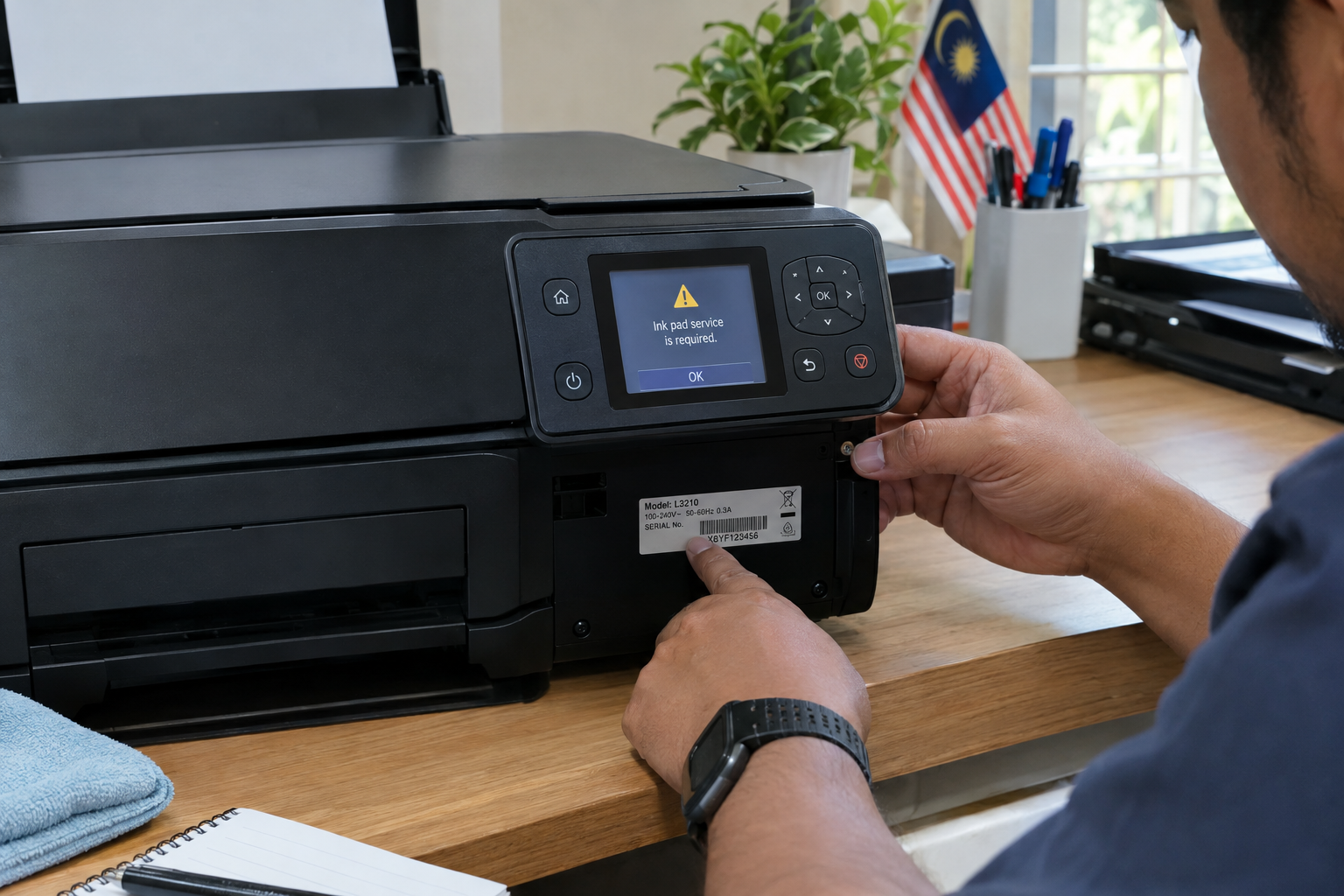
An Epson “Ink Pad Needs Service” warning means the printer’s waste-ink tracking has reached its limit. The right fix depends on your model, because some printers use a replaceable maintenance box and others an internal pad. Note the exact model, the full warning text and any flashing-light pattern, then check Epson’s documentation for that model or ask a qualified technician.
Fixing the “Epson waste ink pad” / “Ink Pad Needs Service” error (Malaysia): when to reset, clean or replace
A message such as “Ink Pad Needs Service” or “A printer’s ink pad is at the end of its service life” means the printer has detected a waste-ink service condition. Epson printers typically track waste ink with an internal counter. When it reaches its limit, the printer may stop printing and display a warning or flashing-light pattern.
That warning does not, by itself, identify the correct repair for every Epson model. It may relate to an internal waste-ink pad, a replaceable maintenance box or another model-specific service procedure. Treat the message as a prompt to identify the correct component—not as proof that a generic reset will solve the underlying condition.
An Epson maintenance box stores ink flushed from the system during printhead cleaning and is replaced when full. This is different from replacing an internal waste-ink pad, which depends on the printer model. The distinction matters because a maintenance box may be designed as a replaceable component, while an internal pad may require access to the printer and model-specific servicing.
Before buying a part, check the printer’s exact model number and its documentation. Do not assume that a maintenance box listed for one Epson product will fit another. If the documentation does not clearly identify a user-replaceable component, pause before opening the printer.
The safest decision depends on what the model documentation says and whether there is evidence of a physical waste-ink problem. A reset changes the tracked usage state; it does not remove ink from a pad or maintenance box.
| Observed condition | Likely decision branch | Practical next step | Important limitation |
|---|---|---|---|
| The warning appears, but there is no visible leakage and the model documentation identifies a replaceable maintenance box. | Maintenance-box replacement | Confirm the correct model-specific component and follow the Epson instructions. | Do not substitute a different part or assume a counter reset is sufficient. |
| The warning appears and the printer has an internal waste-ink pad. | Model-specific service | Use the relevant Epson service guidance or ask a qualified technician to inspect it. | Internal access and reset steps vary by model. |
| A reset is suggested by the model documentation, but the physical waste-ink component has not been checked. | Temporary unblock only, if appropriate | Confirm the component condition before relying on the printer for ongoing work. | A reset does not remove accumulated ink. |
| Ink is visible outside the intended waste-ink area, or the warning returns after service. | Physical inspection and service | Stop experimenting with generic reset instructions and arrange a model-specific diagnosis. | There is no universal leakage threshold or repair procedure, so rely on your model’s documentation. |
Only consider a counter reset when the exact Epson model documentation or a qualified technician indicates that it is suitable. A reset may clear the tracked service state, but it cannot clean, empty or restore the absorption capacity of a waste-ink pad. For that reason, treating a reset as the complete repair can leave the physical maintenance issue unresolved.
If printing is urgent, use any permitted reset only as a temporary decision—not as evidence that the printer has been permanently serviced. Keep checking for renewed warnings or visible ink and arrange the correct physical service where required.
Choose physical service when the model specifies an internal pad, when the maintenance component is full or saturated, when there is visible leakage, or when the warning returns after a counter reset. Cleaning methods, replacement intervals and safe access procedures differ between Epson models.
Do not use ordinary sponge, cotton, tissue or household felt as a substitute for a model-specific pad or maintenance component. The correct part must match the waste-ink path and retain ink reliably. If the model documentation does not explicitly describe owner replacement, ask for professional inspection instead.
For a local discussion about a printer problem, you can review the available printer services information. The page should not replace checking the Epson model documentation or confirming the diagnosis.
Prepare the exact model number, the full on-screen message, any flashing-light sequence, recent cleaning or ink-system work and clear photos of visible leakage. When contacting a repair provider, ask whether the quoted work covers diagnosis, maintenance-box replacement or internal pad service, counter handling and functional testing.
Prices and turnaround depend on the model and on an inspection, so ask for a quotation once you can give the model number. OK Computers lists absorber sponge servicing among its printer services; confirm that your model is covered, or call 017-519 0359.
It means the Epson printer has detected a waste-ink service condition through its tracking system. The exact component may be an internal waste-ink pad or a replaceable maintenance box, so the model must be identified before choosing a remedy.
You may be able to reset it if the exact model documentation or a qualified technician supports that procedure. A reset changes the tracked state but does not remove ink from the pad or maintenance box, so it should not be treated as a complete physical repair.
It depends on the model. Some Epson printers use a replaceable maintenance box, while an internal waste-ink pad follows a different, model-dependent service path. Check the relevant Epson documentation before opening the printer or ordering a part.
Use only the model-specific Epson replacement pad or maintenance component identified for the printer. Do not substitute ordinary sponge, cotton, tissue or household felt because the correct component must fit the waste-ink path and retain ink appropriately.
Ask for model-specific service when the printer has an internal pad, when ink is leaking, when you cannot confirm the correct component, or when the warning returns after a reset or replacement. Provide the model number and warning details so the provider can assess the correct service path.
Before requesting printer support in Malaysia, gather the model number and error details. You can then use the printer services page to begin a local enquiry and confirm whether the required work is a maintenance-box replacement, internal pad service or another model-specific diagnosis. Call OK Computers on 017-519 0359 (Mon–Sat, 11 AM–7 PM).
Reliable on-site and remote IT services for homes and businesses, ready whenever you need support.