
Blogs & Articles
Read useful articles, tips, and updates about computers, IT solutions, and technology trends.
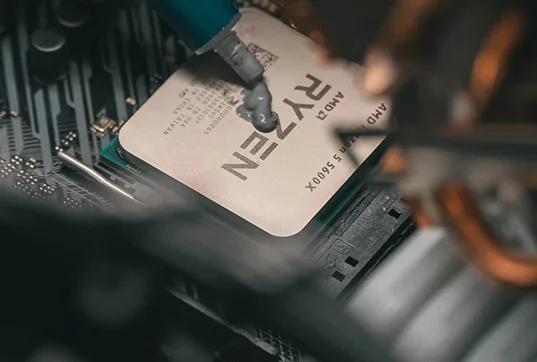
The clearest signs your PC needs an upgrade are persistent performance limits you can identify, rather than a slow computer on its own. If your normal workload regularly exhausts the available RAM, an old hard drive delays every task, or demanding software overwhelms a compatible graphics card, replacing the right component can make the computer substantially more useful. By contrast, overheating, repeated crashes and storage errors may call for a repair or data recovery assessment before any upgrade.
This guide helps Malaysian students, home users and small businesses decide whether to upgrade RAM, install an SSD, improve graphics performance or replace the computer altogether. The aim is to spend money where it solves a measurable problem, not to buy a faster-looking specification that makes little difference to daily work.
Use the symptoms below as starting points, not definitive diagnoses. A technician should confirm compatibility and hardware condition before you order parts.
| What you notice | What to investigate | Likely next step |
|---|---|---|
| Windows and programs take a long time to open | Mechanical HDD, high disk activity, startup workload | Check drive health; consider a compatible SSD if the drive and system are otherwise sound |
| Browser tabs or applications frequently reload | Available RAM, active workload and background processes | Consider a supported RAM capacity upgrade after ruling out unnecessary software |
| Video editing, CAD or games stutter under load | CPU/GPU utilisation, memory, temperatures and software requirements | Assess GPU, CPU or whole-system limitations; do not assume one part will fix everything |
| Files and updates regularly fail for lack of space | Free system-drive capacity and existing storage layout | Remove unnecessary files safely, then assess additional or larger storage |
| Fan noise, heat and unexpected shutdowns | Cooling, power delivery, battery and physical hardware faults | Diagnose and repair first; an expensive upgrade may not address the fault |
| Windows or critical apps cannot be supported | Windows 11 eligibility and application requirements | Check software options and supported hardware; consider replacement where the platform is unsuitable |
| Repeated file errors or clicking from an HDD | Possible storage failure and risk of data loss | Protect important data and seek diagnostics before further intensive use |
A PC that feels sluggish does not automatically need more RAM. Background updates, a browser extension, a nearly full drive or an application error can cause similar symptoms. Before purchasing hardware, try a controlled check:
For software-only checks, see OK Computers’ guide to improving a slow computer without replacing hardware. Microsoft’s Windows performance guidance likewise explains why startup apps, storage pressure and updates should be investigated before blaming the components.
Important distinction: If the computer shows drive-health warnings, files disappear, or a battery swells, stop routine performance testing and arrange professional assessment. Data protection and safety take precedence over a speed upgrade.
A computer may be running out of capacity when it consistently struggles with the tasks it was bought to handle. For example, a desktop that once managed accounting software, several browser tabs and video meetings comfortably might now spend long periods waiting for one application to respond.
Pay attention to repeatability. If the same task causes sustained high memory use or leaves the processor heavily occupied, that provides a stronger clue than an isolated pause. However, high CPU use by a runaway background process does not prove the processor is too weak. Diagnose the process first.
When the workload genuinely exceeds the hardware’s capabilities, decide which component limits it. An extra RAM module can help memory-bound multitasking; an SSD can improve loading delays; a new CPU platform may be necessary for sustained processing demands. These upgrades solve different problems.
Memory pressure is a common reason to consider a RAM upgrade. Typical symptoms include frequent tab reloads, long pauses while switching between applications and an editor or spreadsheet becoming unresponsive when several programs run together. In Task Manager, observe memory use during your real workload rather than judging the capacity on its own.
Eight gigabytes can still suit lighter work in some settings, whereas heavier multitasking, large spreadsheets, design applications or virtual machines may benefit from more. There is no single amount that guarantees performance: check the software’s recommendations, the laptop or motherboard’s supported capacity and whether RAM is actually the bottleneck.
Before buying from OK Computers’ memory and RAM selection, confirm the DDR generation, module form factor, supported capacity, slot availability and any soldered memory. A desktop DIMM is not interchangeable with a laptop SO-DIMM, and DDR4 is not a drop-in replacement for DDR5.
An older PC with a healthy, mechanical HDD as its primary system drive may feel slow when starting Windows, opening applications or loading many small files. Replacing the system drive with a compatible solid-state drive often offers a noticeably more responsive experience, particularly when the processor and memory remain adequate for the workload.
That improvement has limits. An SSD will not automatically increase gaming frame rates or make an inadequate processor suitable for demanding rendering. Moreover, if an existing drive clicks, reports errors or corrupts files, treat the situation as a possible failure: protect your data and arrange diagnostics before attempting aggressive cloning.
OK Computers lists both SATA and NVMe options under internal storage and SSD products. Compatibility matters more than choosing the fastest advertised drive. An M.2 slot can support different interfaces and physical lengths; Kingston’s SSD compatibility FAQ explains why M.2 SATA and M.2 PCIe/NVMe should not be assumed interchangeable.
Running out of space is different from having a slow storage device. A student may need to keep coursework, photos and recorded lectures on one laptop, while a small design studio might need room for video caches and large project exports. When the system drive becomes persistently cramped, software updates and temporary working files can be affected.
Check which files occupy space before purchasing anything. If old downloads and duplicate media explain the problem, safe cleanup may be enough. If the files are needed for ongoing work, a larger compatible SSD, a second drive or an appropriate external-storage and backup arrangement may make more sense.
Do not confuse extra storage with additional RAM. Both can help a computer operate more comfortably, but they address separate constraints. Keep a recoverable backup before migrating or resizing a drive.
Some upgrades are driven by new work rather than a failing PC. A computer that performs reliably for office tasks may struggle with three-dimensional modelling, high-resolution video editing, graphics-intensive games or software that requires a particular GPU feature.
Check the application’s current system requirements and observe whether the CPU, GPU, VRAM or system memory is the actual constraint. For a desktop, a supported graphics-card upgrade may help where the software can use it. Nevertheless, the new card must fit the case and motherboard configuration, and the power supply must provide the required connections and capacity. A GPU upgrade is rarely the solution to slow document editing or poor internet connectivity.
Explore the shop’s graphics card category only after confirming those requirements. Most laptop graphics processors cannot be replaced as an ordinary internal upgrade; a full-device replacement may be a more sensible comparison for a graphics-limited laptop.
Heat can cause a computer to reduce clock speeds, making it seem underpowered even when its specifications are adequate. Persistent fan noise, sudden shutdowns or an abrupt slowdown after a few minutes may indicate restricted airflow, a cooling fault or a power problem.
These are usually repair or diagnostic symptoms first, not permission to install a faster processor or graphics card. Similarly, frequent blue screens can arise from faulty memory, storage, drivers or other causes. Identify the failure before choosing a replacement part.
A laptop that holds significantly less charge than it once did may benefit from a compatible battery replacement rather than a new laptop. However, a swollen battery, burning smell, smoke or damaged charger calls for immediate caution: stop using the equipment, disconnect power if safe, and seek professional help. Never puncture or compress a swollen battery.
OK Computers lists fan cleaning, fan replacement, battery replacement, motherboard diagnosis and component repairs within its Laptop & PC Services.
Performance is not the only reason to plan an upgrade. A computer may work well enough but no longer meet the security or compatibility requirements of an operating system or essential business application.
Windows 10 reached its standard end-of-support date on 14 October 2025. In 2026, users still relying on Windows 10 should review their eligibility for Windows 11, any applicable Extended Security Updates (ESU) arrangements and the requirements of their software. This does not mean every Windows 10 device stopped working or that every user must immediately buy a new computer. It does mean unsupported systems need a deliberate security-support plan. See Microsoft’s lifecycle guidance.
Use Microsoft’s PC Health Check instructions to assess Windows 11 eligibility. A memory or storage upgrade will not necessarily overcome an unsupported processor, TPM requirement or firmware limitation. For older business machines, also verify printer drivers, accounting software, security tools and other essential applications before changing the platform.
The question is not whether an upgrade is technically possible; it is whether the change addresses the problem at a reasonable cost and leaves you with a dependable system. The following examples show how to frame that decision.
| Situation | Preferred first direction | Reason |
|---|---|---|
| Healthy desktop, adequate CPU, but an HDD-based Windows installation | Investigate SSD upgrade | A drive change may address loading delays without replacing otherwise usable hardware |
| Compatible laptop repeatedly runs short of memory | Check supported RAM expansion | More usable memory may reduce workload-related swapping and app reloads |
| PC overheats, crashes or reports drive errors | Professional diagnosis and repair | Replacing the wrong component could waste money or put data at risk |
| Older desktop needs specialised graphics performance | Assess GPU plus power and CPU balance | A graphics upgrade helps only when the workload and system can benefit |
| Laptop has fixed RAM and an unsuitable CPU for essential new software | Compare a supported replacement | Key components may not be realistically upgradeable |
| Several expensive components need replacement at once | Compare full repair scope with a newer PC | Platform age, warranty, reliability and future support can change the economics |
Choose the component by the specific bottleneck rather than a generic ranking of ‘best upgrades’.
| Component | Best reason to consider it | What it will not automatically solve |
|---|---|---|
| RAM | Repeatable high memory use during real work; supported slots and capacity | Low storage capacity, failing hardware or a slow internet connection |
| SATA or NVMe SSD | Slow loading from a healthy HDD, or insufficient storage for active projects | GPU-limited frame rates, an unsupported CPU or cooling faults |
| Desktop GPU | Graphics-intensive work that exceeds the existing GPU, after compatibility checks | General browser slowness or an inadequate power supply |
| CPU / motherboard platform | Sustained processor limitations or essential new feature requirements | Often a simple laptop upgrade; may also require RAM, cooling or PSU changes |
| Battery or cooling components | Deteriorated battery runtime or a diagnosed fan/thermal fault | A need for greater graphics or processing performance |
Even a sensible upgrade can fail if the component does not match the exact device model. Start with the manufacturer’s documentation, not just the capacity or product name displayed in a shop.
A manufacturer’s laptop upgradeability guide explains why removable memory, soldered components and battery replacement differ by design. Do not attempt board-level changes or battery disassembly without appropriate expertise.
Suppose a Bukit Mertajam office uses a desktop that starts slowly but handles invoicing and browser work adequately once everything loads. If diagnostic checks show a healthy HDD is the primary delay and the application requirements remain supported, a compatible SSD may be more economical than replacing the whole workstation. The team should still back up its accounting files and confirm software activation before migration.
Consider a laptop that repeatedly runs short of memory during online classes, research and large assignments. If the manufacturer confirms all its RAM is soldered and there is no supported expansion path, buying a RAM module would be pointless. A replacement laptop with adequate memory may be more appropriate if performance genuinely limits study.
A desktop may run everyday software smoothly but struggle in a newer three-dimensional application. Rather than assuming every part needs replacing, check the application’s GPU requirements, performance data, case clearance and power delivery. A compatible graphics-card upgrade could help, but a severely outdated CPU platform may make a broader replacement more sensible.
These are illustrative scenarios, not claimed customer case studies or promised performance outcomes.
Parts prices tell only part of the story. Ask for a quotation that distinguishes compatible hardware, labour, data backup or migration, any operating-system work, warranty coverage and expected downtime. Also consider the computer’s remaining useful life, the software you must run and the risk of another older component failing soon.
For a small business, a modest upgrade that keeps an existing workstation productive may be good value. Conversely, replacing several ageing components, restoring an unsupported platform and losing valuable work hours could cost more than a properly specified new machine. There is no universal Malaysian-ringgit threshold or percentage that makes one option automatically correct.
If replacement is the stronger option, compare suitable systems through OK Computers’ desktop and laptop range with your actual workload and software requirements in mind. Avoid choosing solely by the processor’s branding or the headline discount.
Before visiting a repair shop, note your exact laptop or desktop model, existing RAM and storage, the programs that feel slow, any warning messages and whether the symptoms appear only under certain tasks. Back up important files where it is safe to do so. This gives the technician a practical starting point and helps prevent unnecessary purchases.
OK Computers’ Laptop & PC Services cover troubleshooting, component replacement, SSD upgrades, adding RAM and relevant hardware repairs. The company also offers on-site IT support for appropriate home and office tasks in its listed Penang and nearby service areas; specialised hardware work may require in-store assessment.
Ask the team to confirm part compatibility, data-handling requirements and the work included in the quotation. The right outcome might be a modest upgrade, a straightforward repair or a new computer – the diagnosis should determine the recommendation.
The strongest evidence that a PC needs an upgrade is a limitation you can reproduce and link to a compatible hardware change. Persistent memory pressure may justify more RAM; HDD-related loading delays may justify an SSD; and a demanding graphics workload may call for a suitable GPU. Hardware failures, unsafe batteries and overheating require investigation before spending money on faster components.
Above all, compare the upgrade with the computer’s overall condition and future software needs. A deliberate diagnosis protects your data, avoids incompatible parts and helps you invest in a computer that remains useful for the work ahead.
Adding compatible RAM normally does not alter files stored on a drive. Replacing a system SSD may involve cloning, reinstalling Windows or transferring data, so verify a separate, recoverable backup before work begins. Do not assume that an unsuccessful migration can always be reversed.
Check the model identification label and Windows Settings > System > About, then confirm the full model or product number against the manufacturer’s support page. Similar-looking laptops can have different RAM layouts or SSD interfaces. Avoid posting a device serial number publicly.
It can, depending on the licence, encryption configuration and how the system is migrated. Record software keys and recovery information, check the vendor’s transfer policy and ask the responsible IT administrator before replacing a business system drive.
Sometimes. A desktop may have an available bay and connector, while a laptop may have room for only one internal drive. Confirm compatibility and backup requirements. If the old drive is failing, do not reuse it for important data.
Warranty terms vary by brand, model and service agreement. Some devices permit user-replaceable memory or storage; others require authorised servicing. Check the actual warranty conditions and service manual before opening the device.
Describe the symptoms, your computer’s model and the applications you rely on. OK Computers can help you review suitable RAM, SSD storage, relevant repair work or a replacement computer, subject to diagnosis and compatibility.
Reliable on-site and remote IT services for homes and businesses, ready whenever you need support.