
Blogs & Articles
Read useful articles, tips, and updates about computers, IT solutions, and technology trends.
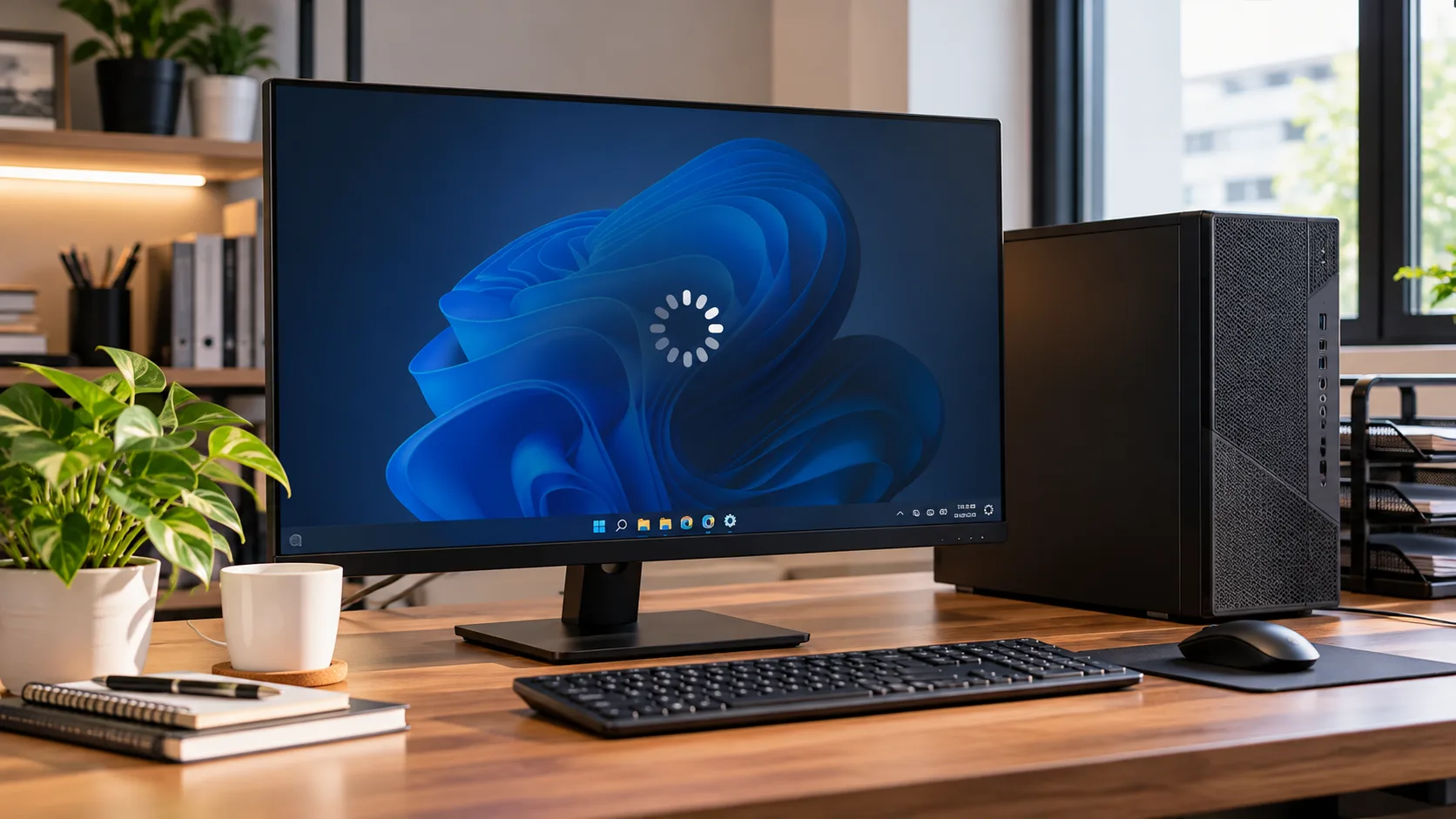
A slow computer does not automatically need a new processor, more RAM or a replacement laptop. When Windows takes too long to start, browser tabs freeze or applications respond slowly, the cause may be a background task, low free storage, unwanted software or a problem that can be diagnosed before spending money on parts.
This guide shows you how to speed up a slow computer using practical Windows 10 and Windows 11 checks. Start with the least disruptive steps, observe what changes, and stop if the symptoms suggest hardware failure. The aim is to restore usable performance without replacing hardware, not to promise that every ageing PC can be made fast.
Before changing settings, notice when the delay happens. A computer that is slow only when opening a browser needs a different investigation from one that takes ten minutes to boot or becomes unresponsive while copying files.
| Symptom | Likely area to investigate | First safe check |
|---|---|---|
| Slow immediately after signing in | Too many startup applications or background updates | Check Startup apps and wait for updates to finish |
| Slow only with many browser tabs | Browser extensions, tab memory use or a specific website | Test a private window and review browser Task Manager |
| Slow whenever any application opens | Disk activity, low free space or memory pressure | Review Task Manager and available storage |
| Slow during video calls | Network quality, browser load or thermal limits | Compare network speed with local app responsiveness |
| Sudden slowdown with pop-ups | Potentially unwanted software or malware | Run a trusted security scan |
| Slow with clicking noises, freezes or file errors | Possible storage or other hardware fault | Back up important files and arrange diagnostics |
If the slowdown began just after installing an application or an update, record that timing. It may help you isolate the cause without making multiple changes at once.
A proper restart clears many temporary processes and gives pending updates a chance to complete. Save your work, choose Start > Power > Restart, and check whether the computer feels better after signing in. Restarting is more useful for this test than repeatedly closing the laptop lid, which may only put it to sleep.
If Windows shows that updates are being installed, let the process finish. Do not force a shutdown unless the device is genuinely unresponsive and you understand the risk of interrupted updates.
Press Ctrl + Shift + Esc to open Task Manager. Under Processes, review CPU, Memory and Disk usage while the slowdown is occurring. Sort one column at a time to see which applications are consuming resources.
Do not end unfamiliar Windows processes just because they use resources. Look up the application name or seek assistance first. For business computers, check with your IT administrator before disabling managed software.
Open Settings > Apps > Startup on supported Windows versions, or use the Startup apps section of Task Manager. Disable non-essential applications that do not need to launch every time you sign in. Common candidates may include personal chat apps, game launchers or optional software updaters, depending on how you use the computer.
Keep security software, required workplace tools and drivers enabled unless you have verified they are unnecessary. Restart and compare the time it takes to reach a usable desktop; do not judge improvement solely by the Windows sign-in screen appearing sooner.
Go to Settings > System > Storage to see what is occupying your system drive. Use Windows temporary-file cleanup or Storage Sense, review large downloads and uninstall applications you no longer use. Check the contents before deleting anything, especially Downloads, Recycle Bin and previous Windows installation files.
When the system drive is nearly full, Windows and applications can struggle to create temporary files and complete updates. There is no universal percentage of free space that guarantees speed; the goal is to provide adequate room for your normal workload.
If you need more space, move personal archives to a properly backed-up external drive or cloud storage. OK Computers also lists laptop and PC troubleshooting and maintenance for users who want help checking the cause before making changes.
Open Settings > Windows Update and check for applicable updates. Install supported security and reliability updates, then restart if prompted. Update your browser and applications through their official channels. For drivers, start with Windows Update or the computer manufacturer’s support page rather than third-party driver-updater utilities.
An update can fix a known performance problem, but updates are not a guaranteed speed boost. If performance worsened immediately after an update, document the change and review the manufacturer’s guidance before attempting a rollback.
Support note: Windows 10 reached its standard end-of-support date on 14 October 2025. Devices still running it should have an appropriate security-support plan or consider a supported operating system; avoid treating an unsupported installation as a long-term performance fix.
If websites are slow but offline programs work normally, test the issue in another browser or a private window. Close unused tabs, disable unnecessary extensions one by one and check whether downloads or cloud syncing are consuming bandwidth. Browser performance can also depend on a website itself, your internet connection and available memory.
A slow Wi-Fi connection is not the same as a slow computer. Try opening a local file or application and compare it with loading a webpage. If the problem is specific to a workplace network, OK Computers offers on-site PC and Wi-Fi troubleshooting in Penang, with more complex repairs assessed in-store where necessary.
Open Windows Security > Virus & threat protection and run an appropriate scan, or use your organisation’s approved security software. Review recently installed applications, suspicious browser extensions and unfamiliar notifications. Avoid downloading random “PC cleaner” or “speed booster” tools; some create more problems than they solve.
If you suspect ransomware, stolen credentials or active compromise, disconnect the device from the network if safe, avoid signing into sensitive accounts on it and seek qualified help. Do not attempt aggressive cleanup before preserving important evidence or business data.
Blocked vents, failing fans and excessive heat can cause a computer to reduce performance to protect itself. Place laptops on a firm surface, keep ventilation openings clear and listen for abnormal fan behaviour. Shut the device down before cleaning accessible exterior vents; avoid opening a laptop or using compressed air inside it unless you know the manufacturer’s procedure.
On supported devices, check Settings > System > Power & battery for an appropriate power mode. A power-saving setting can trade speed for battery life, while a higher-performance mode may increase heat, noise and power consumption. Test changes only where suitable for your device and work environment.
Persistent overheating, unexpected shutdowns or a fan that stops spinning calls for professional inspection. OK Computers lists fan cleaning, fan replacement and PC performance checks among its services.
Make one adjustment, restart if needed and repeat the same task. For example, measure the time from sign-in until your usual work application is responsive, or time how long it takes to open a local document. A consistent test helps distinguish real improvement from a temporary change in workload.
| Action | What to record | What the result suggests |
|---|---|---|
| Restart and retest | Time until the desktop is usable | Improvement may indicate temporary background activity |
| Reduce startup apps | Time until your usual apps respond | Improvement suggests startup load was a factor |
| Free storage space | Free space before/after; app opening time | Improvement may indicate storage pressure |
| Close tabs and extensions | Browser responsiveness with the same websites | Improvement points toward browser workload |
| Check power mode and airflow | Speed under similar workloads; fan behaviour | Changes may indicate power or temperature effects |
If the steps above do not help, avoid repeatedly resetting Windows or deleting system files. A full reset or clean installation can remove applications and personal data if performed incorrectly. Back up important files and confirm you have software licences, account credentials and recovery options before considering a reinstall.
Some slowdowns cannot be solved with settings alone. A failing drive, insufficient memory for the workload, damaged cooling system or ageing hardware may need a repair or upgrade. If that becomes relevant, read signs your PC may need an upgrade; this article intentionally concentrates on software and usage changes first.
| Warning sign | Why it matters | Recommended next step |
|---|---|---|
| Important files disappear or storage errors appear | Possible data corruption or storage fault | Stop unnecessary writes; back up what you safely can and seek help |
| Burning smell, smoke or damaged power cable | Electrical and fire hazard | Power off, unplug if safe and do not reuse |
| Repeated blue screens or sudden power-offs | Potential driver, thermal or hardware fault | Record error details and arrange diagnostics |
| Computer becomes extremely hot | Possible cooling fault | Shut down and have the cooling system checked |
| Business PC with sensitive data | Changes can affect security or compliance | Consult the responsible IT administrator |
For recurring performance issues, OK Computers’ Laptop & PC Services include troubleshooting, system maintenance, backup and component diagnostics. Based in Bukit Mertajam, the business also provides on-site IT support for appropriate home and office issues in its service areas. Confirm availability and whether an in-store assessment is required before visiting or booking.
A maintenance routine helps prevent avoidable problems over time; this guide is specifically for diagnosing a computer that is already slow. For preventive cleaning, backups and routine checks, see computer maintenance tips for PCs and laptops. If you encounter an error rather than general slowness, the common PC problems guide covers a different troubleshooting intent.
A recent update, background scan, newly installed application or unwanted software may explain a sudden change. Restart first, then check Task Manager and recent changes. If you also see storage errors or repeated crashes, back up important files and seek diagnostics.
Often, yes. Reducing startup apps, closing unnecessary browser tabs, freeing storage space and addressing software problems may help. If your normal workload consistently exceeds available memory, software changes may have limited benefit.
It can help when the system drive is short of space, but deleting temporary files does not automatically improve CPU or memory performance. Review the files carefully before deleting them.
Usually not. Windows includes tools for storage cleanup and startup management. Registry cleaners and unverified speed boosters can introduce errors or unwanted software without delivering a reliable performance benefit.
Battery-saving settings can reduce performance to extend battery life. Check the power mode and battery condition, and compare the same workload while plugged in. Do not use a damaged charger or swollen battery.
Seek help when slowness persists after basic checks, or when you notice overheating, repeated crashes, unusual storage noises or missing files. Back up important data where safe before handing over the device.
Need help diagnosing a slow PC? Contact OK Computers to describe the symptoms, device model and any error messages so the team can advise on an appropriate next step.
Reliable on-site and remote IT services for homes and businesses, ready whenever you need support.