
Blogs & Articles
Read useful articles, tips, and updates about computers, IT solutions, and technology trends.
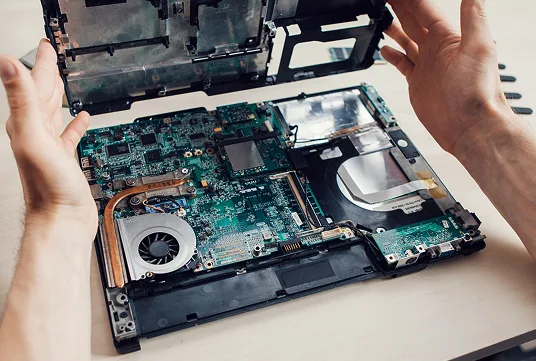
Good computer maintenance is a combination of five habits: keeping cooling vents clear, updating supported software, managing storage and startup apps, protecting accounts, and backing up important files. These simple steps can reduce avoidable slowdowns and help you recognise a developing fault. They cannot, however, repair a failing drive, swollen battery or damaged motherboard.
Whether you use a Windows laptop for university assignments, a desktop for gaming, or several PCs in a small Malaysian office, the best computer maintenance tips are the ones you can follow consistently without putting your hardware or data at risk. Start with the quick checks below, then use this guide to decide what to do yourself and when to call a technician. Most menu paths refer to Windows 11; managed business PCs may require approval from an IT administrator.
You do not need specialist software to spot many everyday problems. Before installing an optimiser or buying new parts, make these observations while the computer is operating normally:
Stop and seek help if you notice a swollen battery, burning smell, liquid damage, sparking, repeated shutdowns or a drive that makes grinding or clicking sounds. These are not problems to solve by running more cleaning apps.
There is no universal schedule that suits every PC. A desktop beside a dusty workshop needs more frequent visual checks than a laptop used occasionally in a clean, air-conditioned room. Use the following timetable as a practical starting point, adjusting it to the device manual, environment and business requirements.
| Suggested frequency | Task | What to confirm |
|---|---|---|
| During normal use | Keep vents free and watch for warnings | No blocked airflow, damaged cable, unusual noise or unexpected temperature warning. |
| Weekly or as needed | Review free space and recent backups | Important documents are protected; you can recognise files before removing them. |
| Monthly | Check updates, security and startup apps | Operating system and apps are supported; security protection is active; unnecessary startup apps are identified. |
| Every 1–3 months, or sooner in dusty areas | Inspect and gently clean accessible exterior surfaces | Vents are unobstructed, peripherals work and fans do not sound abnormal. |
| Periodically and after important changes | Test restoration and reassess hardware condition | A sample file can be restored, and recurring faults have a clear follow-up plan. |
Dust and lint can restrict airflow around a laptop’s intake or a desktop’s cooling fans. Over time, this may contribute to excess heat, fan noise and performance throttling. The first step is prevention: keep laptops on a firm surface, avoid placing them on cushions or blankets, and leave enough space around the computer’s exhaust vents.
For exterior cleaning, shut the device down, unplug it and use a clean, non-abrasive microfibre cloth in accordance with its manufacturer’s instructions. Do not spray cleaner directly onto the screen, keyboard or ports. Dell’s computer maintenance guidance also recommends disconnecting power and avoiding household vacuums or blowers that may create static or other risks.
If the manufacturer’s instructions permit compressed air, use it carefully; do not drive dust deeper into the device or spin an exposed fan excessively. A sealed laptop can be difficult to dismantle safely. Never open a desktop power supply or interfere with a laptop battery pack during routine cleaning. If the fans remain loud after you clear external obstructions, internal inspection is better handled by a technician.
For 2026, operating-system support is a major part of PC maintenance. Microsoft’s standard support for Windows 10 ended on 14 October 2025. A Windows 10 PC can still turn on and run applications, but an unsupported installation should not be treated as secure simply because antivirus software is installed.
Check your operating system under Settings > System > About or by searching for winver. If the device remains on Windows 10, assess Windows 11 compatibility and whether a supported upgrade is practical. Microsoft also describes an Extended Security Updates (ESU) option for eligible enrolled devices; coverage and eligibility must be checked rather than assumed. See Microsoft’s official Windows 10 end-of-support guidance.
For an office that depends on older accounting software, specialised peripherals or legacy applications, back up data and check software compatibility before replacing the operating system. An abrupt upgrade can create a different operational problem if critical software no longer works.
Security patches, bug fixes and application updates help maintain a reliable computer. On Windows 11, open Settings > Windows Update, review available updates and restart after saving your work. Keep your web browser, PDF reader and other frequently used applications supported as well.
Drivers and firmware need more care than ordinary app updates. Prefer Windows Update and your laptop or motherboard manufacturer’s official support page. Do not install unknown driver-booster utilities or a BIOS update simply because an advertisement says your computer is outdated. Firmware changes require the correct model, stable power and the manufacturer’s exact procedure; an interrupted update can prevent a computer from starting.
Microsoft’s Windows performance guidance covers updates, resource monitoring, startup programs and other supported troubleshooting steps. If your device is managed by your employer, coordinate changes with the authorised IT team.
A nearly full drive can interfere with updates and normal file operations, while too many startup programs may slow the first minutes after signing in. However, deleting random files or disabling every startup entry can cause more harm than good.
Start at Settings > System > Storage. Review large folders, remove unused applications through Windows Settings and use built-in storage tools only after checking what they will delete. Keep a recoverable copy of important files before any significant cleanup. Avoid third-party ‘one-click cleaners’ that request broad permissions or promise guaranteed speed gains.
Next, open Task Manager > Startup apps. Disable only applications you recognise and do not need to launch automatically. Leave security tools, backup software and business applications alone unless you understand their purpose. If Windows remains sluggish, the separate OK Computers guide on speeding up a slow computer without replacing hardware gives a more detailed diagnostic process.
Mechanical hard disk drives (HDDs) and solid-state drives (SSDs) behave differently. An HDD can become noisy or sluggish as it develops problems; an SSD may fail without any clicking sound. Neither drive type should be considered healthy merely because Windows still opens.
Windows’ built-in Defragment and Optimize Drives tool generally handles routine drive optimisation automatically. Importantly, Microsoft distinguishes HDD defragmentation from SSD optimisation, which uses mechanisms such as TRIM. There is no need to repeatedly run third-party manual SSD defragmenters.
If you see storage-health warnings, missing files, repeated read errors or an HDD making grinding or clicking sounds, prioritise preserving data instead of running intensive disk tests. OK Computers’ data recovery guidance for Penang explains when to stop using a drive and what to ask a suitable recovery provider. If the existing drive is healthy but too slow for your work, you can compare compatible options in the shop’s internal storage product category after confirming the correct interface and form factor.
Preventive maintenance cannot eliminate the possibility of theft, accidental deletion, ransomware or storage failure. Your most valuable protection may be a backup that has already been tested. Choose a schedule based on how much work your household or business could afford to lose.
The familiar 3-2-1 backup approach is a useful planning model: keep three copies of important data, use two storage methods or media where practical, and keep at least one copy separate from the original device or location. An external drive and an appropriately configured cloud service can complement each other. For a simple local backup option, review OK Computers’ external storage category, checking device capacity and suitability before ordering.
Cloud sync is not always a complete backup. Depending on configuration, deleted or corrupted files may synchronise too. Microsoft’s guide to Windows backup choices explains cloud and external-drive options. For any method, check that a recent backup exists and occasionally restore a sample document to a safe location. Small businesses should include accounting databases, shared folders and critical application settings in a documented recovery plan.
Computer maintenance is also data security. Use Windows Security or another legitimate, maintained security product, keep the firewall enabled where appropriate, and avoid software installers from unknown sources. Do not trust browser warnings that claim your PC is infected and demand an immediate phone call or payment.
Use strong, unique passwords and enable multi-factor authentication for email, banking and business systems. In its 7 November 2026 security advisory, CyberSecurity Malaysia emphasises security patches, maintained antivirus protection and regular backups to reduce the impact of cyber incidents.
For a shared office PC, staff should have individual accounts rather than routine access to a shared administrator login. If ransomware or a credential compromise is suspected, avoid entering more passwords on the affected device and involve the responsible IT support team before taking potentially destructive action.
Battery runtime alone does not prove that a laptop needs replacement. It varies with screen brightness, workload, battery age and model. Watch for unexpected shutdowns, poor charging performance and manufacturer battery-health warnings. Use a compatible charger, keep cables undamaged and avoid trapping heat around the device while charging.
A visibly swollen battery is different from normal ageing. Stop using the laptop if it is safe to do so; do not puncture, press or attempt to flatten the battery. For model-specific advice, read OK Computers’ laptop battery replacement guide for Penang.
If Wi-Fi seems slow, test another device on the same network before changing Windows settings. A broadband or router fault is not necessarily a PC maintenance problem. For workplace networking, ask the authorised administrator before restarting a shared router, server or access point.
Normal maintenance helps prevent avoidable problems, but recurring failures need diagnosis. The table below separates low-risk first checks from signs that may require professional repair.
| Symptom | Safe first check | When to stop DIY |
|---|---|---|
| Slow startup or lag | Check updates, storage and startup apps; restart when appropriate. | Slowness persists with crashes, corrupted files or serious hardware warnings. |
| Loud fan or overheating | Check exterior vents and use the laptop on a firm surface. | Repeated thermal shutdowns, persistent fan faults or abnormal heat. |
| Drive-health alert or clicking HDD | Identify available backups without running intensive tests. | Repeated read errors, missing files or mechanical noise; protect the original media. |
| Charging or power trouble | Check an external outlet and a known-compatible power adapter. | Swelling, damaged charging port, burning smell or visible electrical damage. |
| Frequent blue screens or freezing | Record the error, affected app and any recent hardware or software change. | The problem recurs across applications or prevents reliable booting. |
For step-by-step symptom investigation, see common PC problems and safe first fixes. Avoid resetting Windows, formatting a drive or repeatedly power-cycling suspected failing storage before protecting important data.
Some popular maintenance advice is outdated or too general for modern computers. Use documented symptoms and manufacturer instructions rather than following a fixed ritual.
| Common claim | Better approach |
|---|---|
| “Run a registry cleaner every week.” | Avoid unverified registry-cleaning utilities. They are not a necessary part of normal Windows maintenance and can change important settings. |
| “Defragment every SSD manually.” | Allow Windows’ built-in drive optimisation to manage the device appropriately; SSDs and HDDs are handled differently. |
| “Always update the BIOS during a monthly cleanup.” | Follow the device maker’s instructions and update firmware for a genuine need, with stable power and the correct model. |
| “Vacuum the inside of a laptop like a desk.” | Prefer safe external cleaning and manufacturer-approved techniques; internal cleaning may require trained personnel. |
| “Antivirus makes any old operating system safe.” | Check operating-system support and security-update eligibility first; one security tool cannot replace missing patches. |
The core principles are the same, but the exposed risks differ. A desktop may have easier access to external airflow paths and replaceable components, while laptop heat, hinges, battery health and travel-related knocks deserve more attention.
| Device | Pay extra attention to | Avoid |
|---|---|---|
| Laptop | Battery swelling, charger compatibility, blocked bottom vents, hinge damage and safe transport. | Soft surfaces that obstruct intake vents, unapproved battery handling and liquid near the keyboard. |
| Desktop PC | Dust around case intakes, accessible external cables, fan noise, drive condition and sufficient clearance. | Opening power supplies or making internal changes without appropriate training. |
In Penang and other Malaysian locations, computers may operate in warm rooms, air-conditioned offices, or workplaces where dust enters from nearby roads or workshops. Focus on actual exposure rather than assuming every building has identical conditions. Keep equipment away from direct splashes, condensation and blocked ventilation. A device moved between very different temperatures may require time to reach safe operating conditions before use, following the manufacturer’s recommendations.
For students, the priority may be recovering coursework and preserving a stable laptop before an exam. For home users, it is often safe browsing, photos and family documents. For a small office, one missing backup or an unsupported accounting PC can disrupt several employees at once. Set up individual user accounts, record who authorises updates and keep recovery instructions that another staff member can follow.
Businesses should also back up application-specific files and databases, not just the desktop’s Documents folder. Where a workstation connects to shared storage, SQL Accounting, printers or a server, coordinate maintenance with the responsible IT administrator. OK Computers offers on-site IT services for suitable setup, troubleshooting and connectivity tasks, while complex repairs may need workshop diagnostics.
Routine updates, external cleaning and storage reviews are reasonable starting points for many users. Seek professional assessment when symptoms persist, the device needs internal disassembly, the operating system may be unsupported, or data recovery is potentially at stake. Provide your computer’s model, the symptoms, the date the issue began, any relevant error messages and the latest backup status.
Based in Bukit Mertajam, OK Computers provides laptop and PC maintenance, diagnosis, upgrades and repairs. If you need a replacement rather than servicing, compare options in its desktop and laptop product category. Hardware compatibility, available stock and whether on-site service suits the problem should be confirmed with the team.
Computer maintenance is not about installing more cleanup tools. It is about keeping Windows supported, managing updates and storage sensibly, protecting files, preserving airflow and recognising the difference between ordinary housekeeping and a possible hardware fault. A few reliable checks performed consistently are more useful than a long checklist followed only after a breakdown.
Start with the ten-minute assessment, choose a maintenance schedule based on your environment and always protect important data before major troubleshooting. When a problem goes beyond safe routine care, professional diagnosis can help you decide whether to repair, upgrade or replace the device.
Keep cooling vents clear, use a supported operating system, install appropriate updates, review storage and startup apps, maintain security protection, and make restorable backups. Watch for recurring faults that require hardware diagnosis.
Inspect accessible vents and surfaces every few months as a starting point, and more often in dusty environments. Follow your device manufacturer’s instructions; internal cleaning may be safer with a qualified technician.
Do not repeatedly run manual third-party defragmenters on an SSD. Windows normally optimises drives automatically and handles HDDs and SSDs differently, including SSD operations such as TRIM.
Standard Windows 10 support ended on 14 October 2025. Check whether the device is eligible for a supported Windows 11 upgrade or properly enrolled in an applicable Extended Security Updates programme. Antivirus alone does not replace missing system security patches.
No. Removing unnecessary startup apps or freeing space may help, but failing storage, inadequate hardware, malware or overheating caused by damaged components may need a separate diagnosis or repair.
Not automatically. Firmware updates should be based on a genuine security, compatibility or stability need and carried out using the correct model and manufacturer instructions with stable power.
Stop using the laptop if you can do so safely, avoid pressing or puncturing the battery, and arrange qualified service. A swollen battery is a safety issue rather than an ordinary maintenance task.
Not always. Some deletions or corruptions can synchronise across devices. Use a suitable separate backup method, confirm that critical files and application databases are included, and periodically test recovery.
If your computer is overheating, freezing, running slowly despite basic maintenance or showing possible hardware faults, explain the symptoms to OK Computers before replacing parts or resetting the operating system. The team can discuss suitable laptop and PC servicing, component upgrades, and on-site assistance for eligible home or business problems.
Explore Laptop & PC Services, review On-Site IT Services, or contact OK Computers with your device model and symptoms to request an assessment.
Reliable on-site and remote IT services for homes and businesses, ready whenever you need support.