
Blogs & Articles
Read useful articles, tips, and updates about computers, IT solutions, and technology trends.
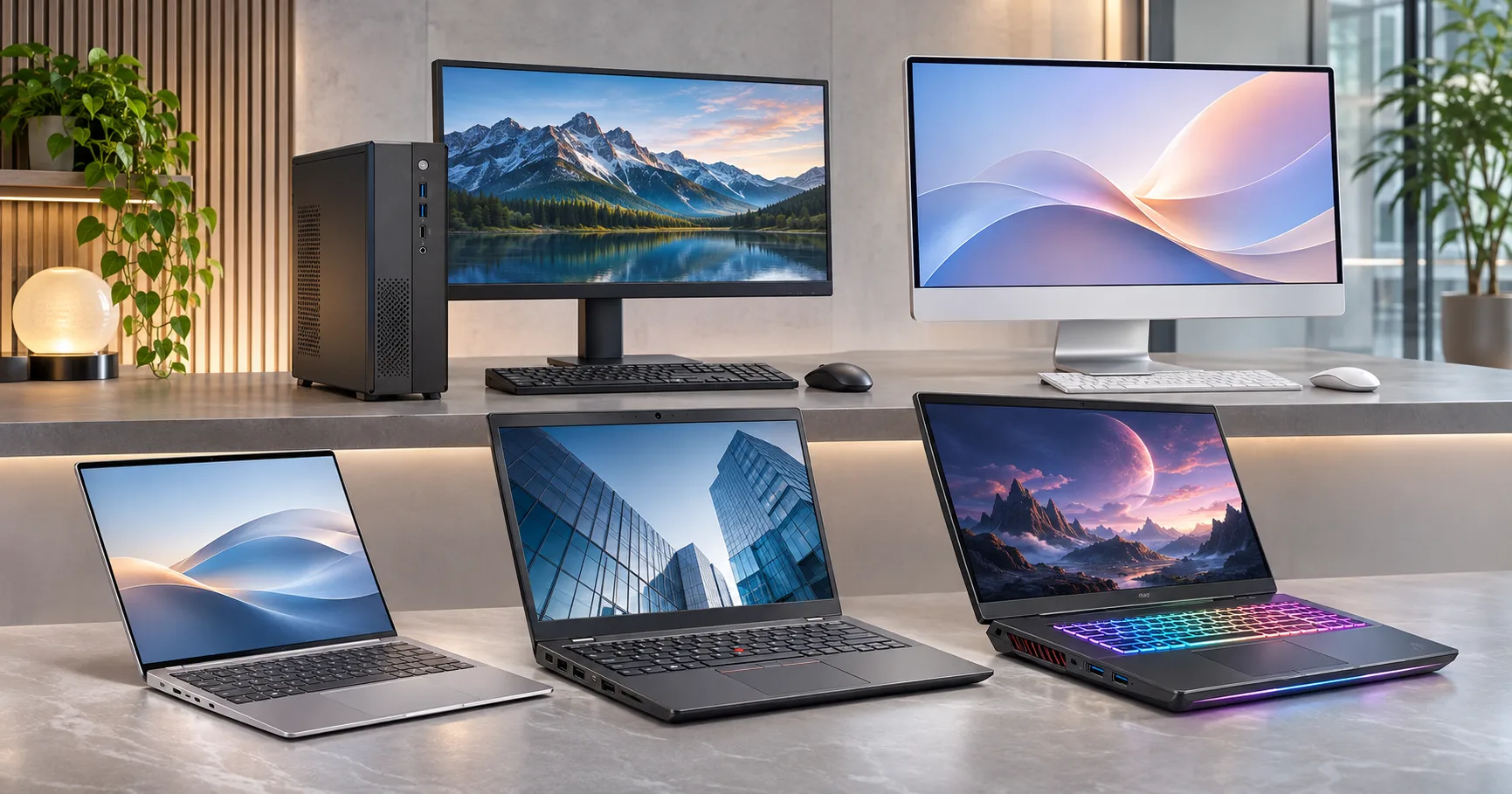
To choose the right PC, start with the work it must handle, then match the processor, RAM, storage, graphics and form factor to that workload. For many students, home users and office staff in Malaysia, a recent mid-range processor, 16GB of RAM and a 512GB SSD offer a sensible starting point. That is buying guidance, not a universal minimum: demanding games, large design files, specialised engineering software and heavy multitasking may call for a different configuration.
The most useful question is not whether a computer has the highest specifications. It is whether you can run your essential applications comfortably, connect your existing equipment and keep the machine useful without paying for performance you rarely need. This guide explains how to compare PCs for work, study, gaming and creative tasks, with practical considerations for buyers in Penang and elsewhere in Malaysia.
Before comparing models, list the applications you use, the files you handle and how many tasks you run at once. A student researching in a browser has different priorities from an accounts executive working with several spreadsheets, an external monitor and an accounting application. Likewise, a photographer editing large RAW images will place more demand on memory and storage than someone preparing presentations.
Make a shortlist around your busiest working day, rather than an unusually light one. Include any software that your employer, college or client requires, as well as peripherals such as printers, drawing tablets or scanners. Then check the software publisher’s current requirements before committing to a specific model.
| Main use | Practical starting configuration | What deserves closer attention |
|---|---|---|
| School, home and everyday browsing | Current entry-level or mid-range CPU, 8-16GB RAM, SSD storage | Comfortable display, webcam, keyboard, Wi-Fi and enough storage for schoolwork and photos |
| Office work, meetings and accounting | Recent mid-range CPU, preferably 16GB RAM and 512GB SSD | Multitasking, external monitors, printer compatibility, software licensing and dependable support |
| Frequent travel and hybrid working | Efficient laptop CPU, 16GB RAM and SSD | Realistic battery endurance, weight, charging, video-output support and warranty |
| Photo editing and design | Capable modern CPU, 16-32GB RAM, fast SSD | Software-specific GPU requirements, colour-accurate display and room for project files |
| 3D work, demanding video editing or gaming | Workload-appropriate CPU, often 32GB RAM for heavier projects, suitable dedicated GPU | GPU performance and VRAM, thermal design, application certification and target resolution/frame rate |
These are flexible purchasing starting points, not certified requirements or promises of performance. Exact specifications should follow the applications, project sizes and models being considered.
Choose a laptop when mobility is a genuine requirement; choose a desktop when your priority is a fixed workspace, easier servicing or greater scope for upgrades. Neither is automatically faster or better value. Two computers with similarly named processors can perform differently because of cooling, power limits and the rest of the configuration.
If you move between lecture rooms, client meetings or home and office, portability matters every day. Look beyond the screen size: check the actual weight, charger size, keyboard comfort, webcam quality and whether the USB-C port supports charging and an external display. A thin laptop with adequate performance but poor battery endurance may be less convenient than a slightly heavier model.
Also check upgradeability before purchase. Some laptops have soldered RAM, limited storage slots or proprietary components. Those design decisions can turn an initially affordable machine into an expensive replacement when your workload grows.
A desktop generally gives a fixed workstation more room for cooling, convenient peripheral connections and, depending on its case and motherboard, component replacement. It can suit office administration, shared business workstations, sustained gaming or demanding creative tasks. However, a compact mini PC may have limited expansion; do not assume every desktop is fully upgradeable.
For small offices, consider the cost of the complete workspace: monitor, keyboard, mouse, webcam, power protection and installation. The tower price alone does not tell you what the workstation will cost to put into service. OK Computers lists both desktops and laptops in its Desktop & Laptops collection, which provides a useful starting point for comparing formats.
The processor affects how quickly your computer handles calculations, launches demanding applications and manages concurrent work. Yet a familiar label such as Core i5, Core Ultra 5 or Ryzen 5 is only the beginning. Performance varies by generation, exact model, laptop power limits and cooling. A newer, efficient mid-range processor can be more suitable for daily work than an older high-tier chip with poor battery life.
For email, spreadsheets, browser research and video meetings, prioritise a responsive current-generation processor over an expensive top-tier specification. If you compile large projects, work with complex spreadsheets or use engineering applications, consult the software’s requirements and consider benchmarks for the exact CPU model. Compare performance under sustained workloads where that matters, rather than relying on marketing labels alone.
RAM holds the data your active applications need. When memory runs short, the system may rely more heavily on storage, and switching between programs can feel sluggish. An 8GB PC can still handle light tasks, particularly with disciplined browser use. However, 16GB generally provides more comfortable headroom for several applications, numerous tabs and video calls running together. For large creative projects, virtual machines and certain engineering workloads, 32GB or more may be appropriate.
Software requirements should settle the argument. For example, Adobe’s current Photoshop requirements recommend 16GB RAM or more. Meanwhile, Autodesk’s AutoCAD 2026 requirements recommend 32GB for its Windows configuration. These are application-specific recommendations, not specifications everyone needs.
Ask whether RAM is upgradeable, how many slots are available and which memory type the device accepts. If you are extending the life of a suitable current PC, OK Computers also provides computer memory options and laptop and PC upgrade services. Confirm compatibility before buying components.
An SSD improves everyday responsiveness compared with a mechanical hard drive, particularly for startup and opening applications. For most new Windows PCs, a 512GB SSD is a balanced starting point. A 256GB drive may suit a tightly controlled, cloud-focused workload, but available space can become restrictive once Windows, updates and several applications are installed. Choose 1TB or more if you keep substantial photo libraries, games, design files or videos locally.
Both SATA and NVMe SSDs can provide a major improvement over an HDD. NVMe usually offers higher transfer speeds, but the difference between two SSD types may be less noticeable in ordinary browsing than the move from HDD to SSD. Verify the machine’s interface and drive size before upgrading. Browse OK Computers’ internal SSD and storage range for compatible options, and remember that additional storage is not a substitute for a recoverable backup.
Modern integrated graphics are often sufficient for office work, streaming, everyday photo handling and multiple displays within a device’s supported limits. A dedicated GPU becomes more relevant for demanding 3D models, GPU-accelerated editing, rendering and modern games. Even then, the exact graphics card, its memory, its power limit and the program’s compatibility requirements matter more than a generic “gaming” or “creator” label.
For gaming, choose a GPU around the games, desired settings, screen resolution and target frame rate. For professional software, check the publisher’s supported graphics features and any certified hardware lists. Do not assume a powerful gaming GPU automatically meets every specialist workstation requirement.
| Component | Reasonable baseline for general productivity | When to spend more |
|---|---|---|
| CPU | Recent entry-to-mid-range processor suited to your apps | Heavy calculations, code builds, demanding creation or specialised software |
| RAM | 16GB preferred; 8GB may suffice for lighter tasks | Large files, virtual machines, intensive design and sustained multitasking |
| Storage | 512GB SSD | Large offline files, substantial application libraries, media projects or games |
| Graphics | Integrated graphics where application requirements allow | Demanding games, rendering, 3D modelling or specific GPU workflows |
| Display and connectivity | Readable display and the ports needed for your equipment | Colour-critical work, multiple monitors, docking or high-refresh gaming |
Specifications on a product card rarely explain what it feels like to use a computer for eight hours. For a laptop, inspect the keyboard, touchpad, screen brightness, viewing angles and hinge. A 14-inch model may be convenient for commuting, while a 15- or 16-inch display can provide more working area at the expense of weight. For desktop work, a comfortable monitor and proper desk setup may improve productivity more than a minor processor upgrade.
Screen resolution is only one part of display quality. For photo or design work, check the actual colour-gamut coverage, calibration options and panel specifications instead of trusting “Full HD” as a guarantee of accurate colour. Gamers should also consider refresh rate and response performance, but only alongside a GPU capable of producing the desired frames.
Review the exact port list. You may need HDMI, Ethernet, a headphone socket, several USB-A connections or USB-C for a dock. Importantly, not every USB-C port supports video output or laptop charging. Verify the model’s specified capabilities, monitor limits and power-delivery requirements before assuming one cable can handle everything. If Wi-Fi connectivity is critical at home or in an office, also consider router compatibility and whether a stable wired connection is available.
For a Windows PC purchased today, operating-system support deserves attention. Microsoft’s Windows 11 requirements include a compatible processor, TPM 2.0, Secure Boot capability, supported graphics and minimum memory and storage. Those published minimums establish installation eligibility; they are not recommendations for a comfortable multitasking workstation.
Standard Windows 10 support ended on 14 October 2025. Extended Security Updates and certain long-term servicing editions have separate arrangements, but they should not be mistaken for ordinary ongoing support. When considering older or refurbished machines, confirm supported Windows 11 compatibility rather than relying only on a seller’s assurance that Windows can be installed.
Beyond Windows, confirm your essential software and equipment: accounting systems, design licences, printers, barcode scanners, VPNs and security tools. A small business should check whether it needs Windows Pro features, device management, domain integration or specialist application support. For offices that depend on accounting and networked systems, OK Computers offers SQL Accounting and server support; compatibility and deployment scope should be discussed for the specific environment.
Consider an office buyer comparing two similarly priced laptops. One advertises a high-tier processor but has 8GB of non-upgradeable RAM and a 256GB SSD. The other has a suitable recent mid-range processor, 16GB RAM and a 512GB SSD. For spreadsheets, video meetings and browser-based work, the second model may deliver a more balanced experience, provided its performance, warranty and connectivity meet the brief. A larger processor label alone does not settle the purchase.
The same reasoning applies to gaming and design PCs: a very fast processor cannot compensate for inadequate graphics hardware in a GPU-bound workload. Conversely, an expensive graphics card adds little value to an office PC used mainly for accounts, email and printing.
| What to verify | Ask the seller or check the specification | Why it changes your decision |
|---|---|---|
| CPU | Exact model number and generation | Prevents misleading comparisons based on tier names alone |
| RAM | Installed capacity, soldered memory and available upgrade slots | Determines multitasking headroom and future flexibility |
| SSD | Capacity, type and additional storage slots | Affects usable space and upgrade planning |
| Operating system | Licensed edition, Windows 11 support and software compatibility | Avoids security, licensing and deployment problems |
| Warranty and service | Local warranty terms, battery coverage and repair arrangements | Reveals the practical cost of ownership |
| Connections | Actual ports, supported monitor outputs and charger specifications | Prevents unexpected adapter or docking purchases |
A sensible PC budget reflects the equipment and services needed to make the device useful, not simply its advertised purchase price. Depending on your situation, allow for a monitor, keyboard, mouse, licensed software, compatible charger or dock, backup drive, Wi-Fi improvements, warranty coverage and setup assistance. Current Malaysian retail prices vary by configuration and availability, so compare like-for-like quotations instead of relying on a fixed price range that may quickly become outdated.
Spend first on the components that remove a genuine constraint. For many office buyers, moving from a cramped 8GB/256GB configuration to a well-balanced 16GB/512GB model can be more worthwhile than upgrading to a premium processor tier. In contrast, a designer whose projects are limited by GPU memory may need to allocate more of the budget to graphics hardware, even if that means selecting a less expensive case or accessories.
Before choosing a refurbished or ex-office PC, check its exact processor model, Windows 11 eligibility, battery condition where relevant, warranty and whether the operating system has been properly licensed. A low upfront price offers little value if the device cannot run your required software or fails shortly after purchase.
Not every slow PC needs replacement. If the machine is compatible with supported software and its fundamental hardware remains sound, a suitable SSD or RAM upgrade may extend its useful life at lower cost. However, an unsupported processor, failing motherboard, limited cooling or sealed memory configuration can make further spending difficult to justify.
Assess the current device before buying again. Identify whether the bottleneck is memory, storage, processor performance, graphics capability or an underlying fault. OK Computers’ PC and laptop services include troubleshooting, RAM additions and SSD replacement. For a more detailed decision on existing hardware, see Signs Your PC Needs an Upgrade. Once you have the right computer, the separate PC maintenance guide covers how to keep it in good condition.
When several people share files, applications or peripherals, individual PC specifications are only part of the decision. Check how staff connect to the office network, where data is stored, how backups work and who will support hardware faults. For example, an accounts workstation may prioritise stable application compatibility and dependable storage, while a design workstation needs more memory and suitable graphics performance. Buying the same expensive model for everyone may waste budget; buying mismatched low-end machines can make IT support unnecessarily complicated.
Document a small number of role-based configurations, then verify each one against the actual software and peripherals. Confirm licensing, support arrangements and any data-migration requirements before deployment. If assistance is needed with setting up workstations or connected office devices, OK Computers provides on-site IT support in Penang, with more complex repairs assessed for workshop service where necessary.
Before requesting a recommendation or quotation, write down your three most demanding applications, typical number of open programs, whether you need a laptop or desktop, desired screen size, current peripherals, approximate storage needs and overall budget. Include any existing software licences or equipment you must continue using. This turns a vague request for a “fast computer” into a specification a technician can assess.
Then ask for the exact CPU model, RAM and storage configuration, graphics specification where relevant, Windows edition, upgrade options, warranty conditions and expected accessories in writing. The best option is the one that meets your real workload with enough flexibility for the next few years, without quietly shifting essential costs into later purchases.
Sometimes, but first check the physical drive format, connector and storage interface supported by the new PC. Moving an old Windows installation directly may introduce driver, encryption, activation or boot problems. Back up your files, confirm how the new system will be set up and ask a technician whether a clean installation and data transfer would be safer.
No. USB-C describes a connector, not one fixed set of features. Video output may require DisplayPort Alt Mode, Thunderbolt or compatible USB4 support; charging depends on the laptop’s USB Power Delivery specifications. Check the precise model and its documented monitor and charging limits before purchasing a dock.
Ask about measured battery health, actual unplugged runtime, charging behaviour and any battery warranty. On supported Windows laptops, a battery report may provide useful capacity information, although a practical test still matters. Also examine the charger, ports and signs of swelling or overheating; do not buy a device with a visibly damaged battery.
Not necessarily. Standardise components and support arrangements where sensible, but group employees by actual workload. Reception or administration may need dependable general-purpose machines, while design, analysis or engineering roles may require additional memory, graphics capability or specialist software. A small number of well-defined configurations is often easier to maintain than a collection of unrelated models.
Confirm who provides local support, the warranty period, what happens to the device during repair and whether batteries, chargers, displays or individual components have different coverage. Ask about proof of purchase, data-handling arrangements and whether onsite service is included or charged separately. Keep the agreed terms with the quotation.
OK Computers, operated by Aizawa Resources Sdn. Bhd. in Bukit Mertajam, supplies computer products and provides laptop, desktop and IT support services. Whether you are comparing a study laptop, an office workstation or a replacement PC, share your intended applications, existing equipment and budget so the team can discuss suitable configurations and availability.
Browse the Desktop & Laptops range or contact OK Computers to discuss your requirements.
Reliable on-site and remote IT services for homes and businesses, ready whenever you need support.